
The map can be found at https://maps.macomb.edu and can be accessed on any smartphone or computer.
We encourage you to explore the map and discover how it enhances our campus community!

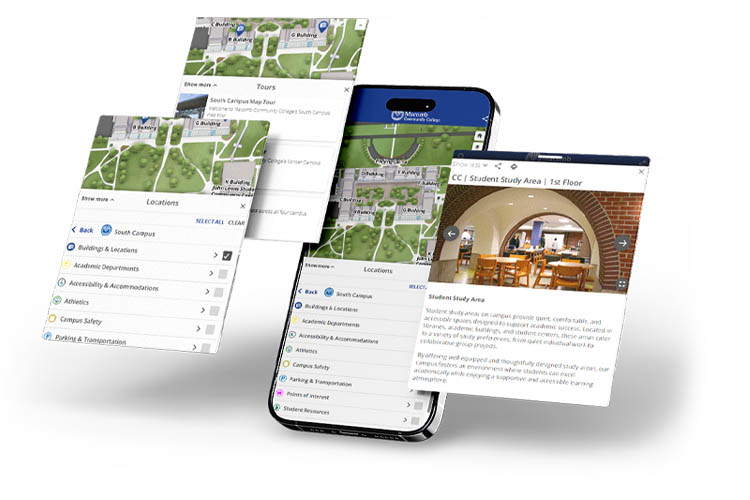
The interactive map at maps.macomb.edu is your go-to tool for navigating Macomb Community College’s campuses. Whether you’re a new student or just visiting, this user-friendly map allows you to easily search for buildings, classrooms, parking lots and campus services. Features like directions, building interiors and location search help plan your visit and find exactly where you need to go. With clear visuals and real-time updates, getting around Macomb has never been simpler!

You can search for buildings and other campus features by name, building code or keyword. Click on the magnifying glass icon at the top left of the page. Click on the building in the search results to see where its located on our campuses.
How to Search Maps

For directions to any area on the map, click on a map marker or pull it up using the search feature, then click on the diamond icon at the top of the info window. Choose "My Location" or enter any address manually.
See How to Video

To see information about buildings, academic departments, parking and accessibility information, as well as student resources and service locations, click on the various map markers shown for each campus location to learn more.

Share any view of the map by clicking the share icon at any time, this includes individual building locations that can be shared from their information windows.
See How to Share

Take tours of locations at Macomb Community College, including a 360-degree virtual tour. Just click on the Tours tab to see our virtual, path-based tours of our campuses.
How to Take a Tour

You can select the Show Me icon to see various Macomb Community College locations, submit feedback or return to the default view of the map.
Show Me Feature
The map can be found at https://maps.macomb.edu and can be accessed on any smartphone or computer.
We encourage you to explore the map and discover how it enhances our campus community!

To print a campus map from Macomb Community College's interactive map website (https://maps.macomb.edu), follow these steps:
Access the Interactive Map:
Open the web browser on your computer and navigate to https://maps.macomb.edu.
Locate the Print Option:
Once the interactive map loads, look for the Print button, which is typically found in in the upper right corner of the map's toolbar.
Print the Map:
Click on the Print button. A dialog box should appear with the option to Generate Print Map. To begin the print process, press the button and select from the list of desired print options.
There are four sections of options to choose from to help define the content that you wish to print. In the second section, choose the campus you wish to print along with any specific markers you want displayed.
After selecting your choices in sections 1-4, click Generate Print Map in the fifth section to produce a hard copy of the campus map.